Welcome to week 1 on an entirely new project called Indie Development. Throughout the next couple of weeks, I will start to develop skills around using the Unreal Engine 4 Blueprint system to develop a prototype by coming up with ideas on what to do.
The start of the project was first getting familiar with the Unreal Blueprint system through using “Actor” types by implementing a game object that moves and then something that changes when the player collides with the object. To begin with, I worked on making a game object such as a windmill that rotates and gain speed over time with a cap it can reach.
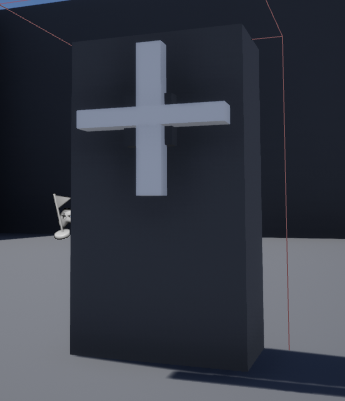

The Windmill blueprint works by where (Figure 2) in every frame, its speed increases over time as long as the “Increasing” value is true. This is done by adding speed with delta second of the event tick and setting this as the new value for “Speed”. However, if the “Speed” value at any point happens to be equal or greater than the “Speed Cap”, the blueprint will then set “Increasing” to false to prevent further increase of “Speed”. The Windmill will always run “AddWorldRotation” to rotate the object in any condition.
After working with creating a simple blueprint with movement in an object, I then started to create a button that when the player collides with it, the colour will change from red to green.
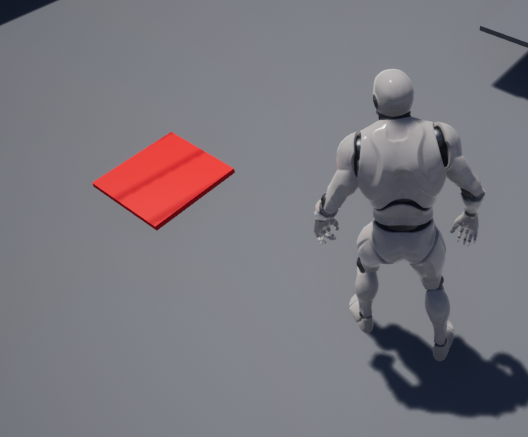
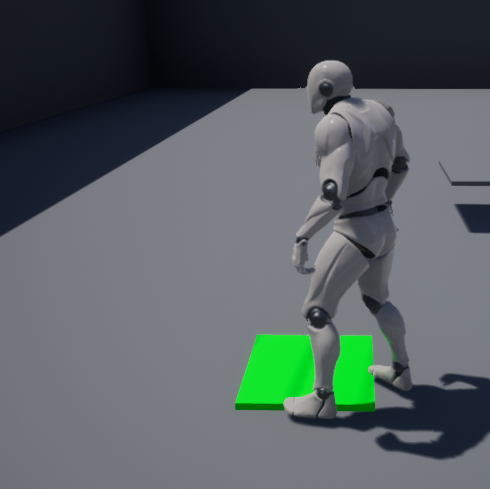
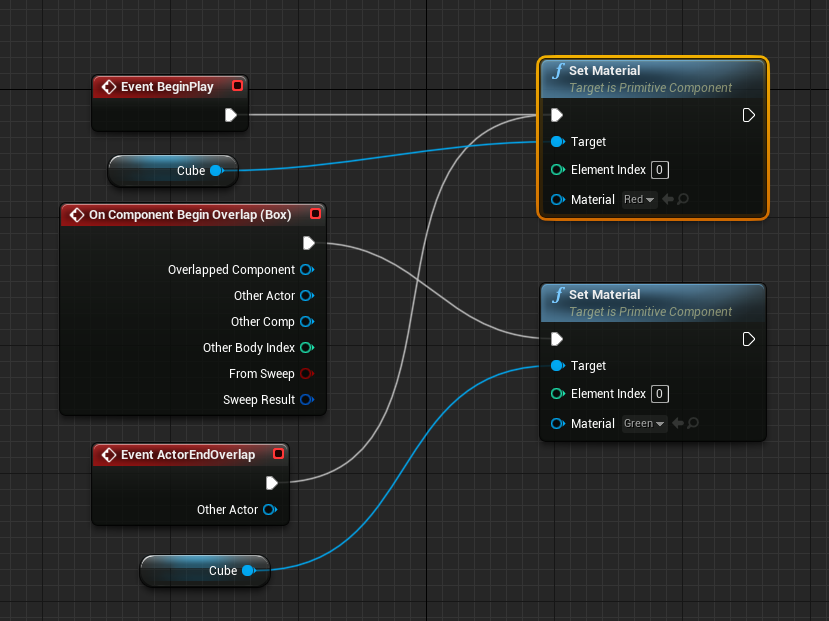
In the button blueprint (Figure 5), it begins play by setting the button material to red to show that it has not been pressed and also this is connected to EndOverlap. This is applied to ensure that the button can change to red when there is no overlap. However, should an object such as the player overlap the button, Begin Overlap is played to set the material to green to show it is active. I plan to have the button to perform a specific action when activated in the future after being more adjusted to the blueprint system toward remembering where is what in The Unreal Engine. One example I could implement to the button function is to have a platform move in a specific direction until the player steps off the button. The player would need to plan to get the platform in the correct position to reach a specific area.
As I had many past experiences working with Unreal Engine and other blueprint systems similar to the above work, I found implementing these objects too easy to do due to my experience. I implemented several different ideas across this project to set me a challenge to further improve my blueprint skills. The ideas were adding extra controls to the player and a platform that animates when the player collides with it after certain conditions were met.
With extra control, I look into adding a sprint mechanic that makes the player move faster and the ability to shoot projectiles from the player.
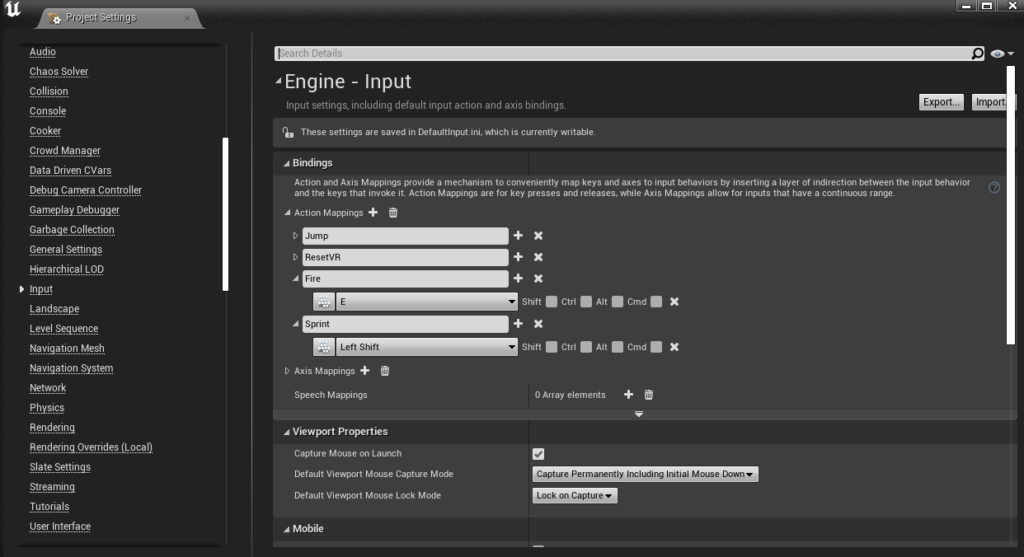
The first thing I needed to was adding extra input to the project. I got around this by going inside the project setting (Figure 6) under input and then adding an action mapping key for the project and labelling them as what action they are. I chose “E” and “LShift” as the keys to shoot and sprint because these keys are common to use for these standard actions.

With the input, I then use them to create events to add functionality when the player presses the keys (Figure 7). When “LShift” is pressed, the “Sprint” event plays. When played, the player’s walk speed is set to a higher value than its default, but when the button is released, the value returns to its previous one. This mechanic worked very well in the project and turned out toward what I wanted. I would look into adding a stamina mechanic of how long the player can sprint for until they run out so that they cannot sprint for long as they want.
When the player presses the “E” key, the “Fire” play creates a new child projectile object to the scene.


In the bullet blueprint (Figure 9), when the object BeginPlay, the object sets a life span to one second, where after that, the bullet gets destroyed. This is done to stop too many bullets from appearing simultaneously and give better performances. On every tick, force is added to the bullet to help with the bullet’s impact. However, the blueprint is not perfect since I am trying to figure out a way of getting the bullet to a direct path depending on where the player is facing to simulate a proper projectile. At the moment, pressing “E” twice seems to achieve this fine, but it could be improved more.
Next, I started implementing the other idea to the project of my own, a platform that animates when the player collides with it once specific conditions have been met. I first need to create a global variable around setting the condition of getting the platform to move. This was done by making a new blueprint type called “GameInstance”, which can hold all global variables for the specific scene. I define the condition variable as an integer called “Target Hits”, where the player needs to hit three targets to get the platform to move.

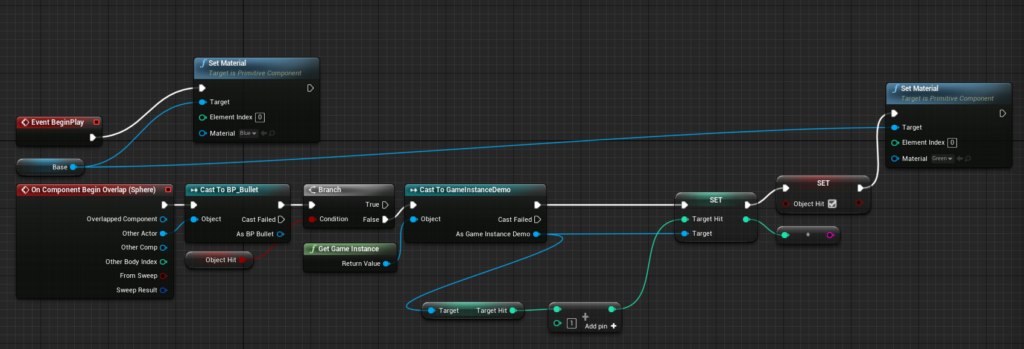
The target blueprint first set the material to blue as the default colour to show that the target has not been hit yet. However, when the bullet blueprint overlaps the object, it starts to check if the object has been hit before. If it has not, the blueprint will get the “GameInstance” and add “Target Hit” by one and add that with its previous value. Also, it will set “Object Hit” to true to stop the blueprint from repeating again and set the material to green to show that the object has been hit.
Now that the target object is ready, the platform conditions can be applied to the project to where we can check if the “Target Hit” is met and assign an animation to it.

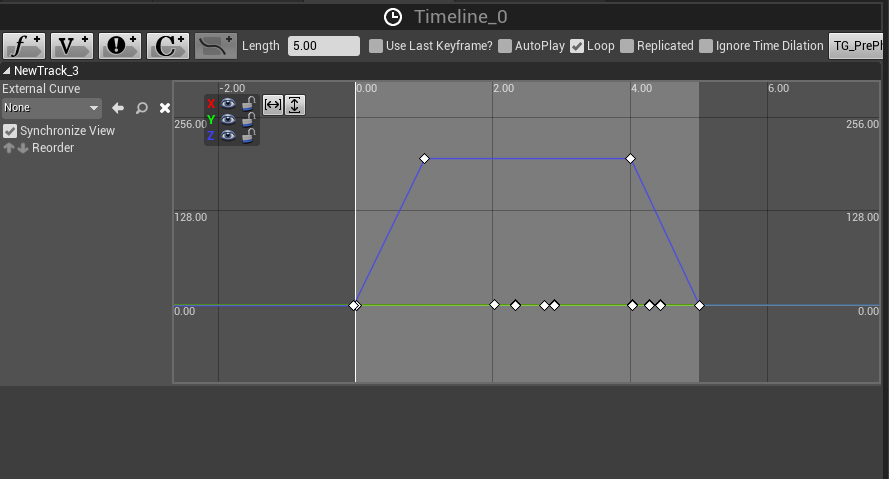
The blueprint design of the platform is that when the player overlaps the object, it will grab the “GameInstance” and check if “Target Hit” is greater or equal to three. If this condition is met, a timeline animation is played where (Figure 13) the platform will move to its new location at 1 second on the Z-axis and then go back to its original location in 5 seconds and loopback. These loops ensure that the player can always get back on the platform at all times in every 5 seconds.
Overall, I feel like these ideas I had implemented to the project has allowed me to pick up on my Blueprint skills in Unreal Engine quickly enough to where I am prepared to start developing a project around the game engine. As I mentioned early, I would like to add functionality toward stepping on the button and look into adding collectable items to the project.